Changelog
Follow up on the latest improvements and updates.
RSS
NewimprovedCalendar
🚀 Calendar AI — AI-powered Calendar setup
We’re rolling out
Calendar AI
to make it easier for new users to go from “I need a calendar” → configured calendar → first booking.
✨
What can users do with Calendar AI?
Users can simply describe what they need, and Calendar AI recommends and creates the appropriate calendar.
During the guided flow, users can:
- Describe their use case instead of figuring out which calendar type to create
- Add team members
- Configure availability
- Choose a meeting location
- See a live preview of the booking calendar
- Book a test appointment once setup is complete
- Discover Calendar capabilities by asking questions or choosing from preset prompts
🔜
Next up — Calendar troubleshooting
We're extending Calendar AI to help with one of our common Calendar support questions:
>
“Why isn't this specific slot showing on my booking widget?”
Calendar AI will use the customer's Calendar configuration to identify
why the slot isn't available and what needs to change.


NewAutomations
Calendly - Workflow Actions & Triggers
What’s new?
You can now connect Calendly directly to Workflows. Five triggers — Invitee created, Invitee canceled, Invitee no show created, New routing form submission, and Event cancelled — plus nine actions covering one-off meeting creation, invitee booking, event lifecycle management, no-show marking, and Calendly contact and user lookups let your automations react to scheduling activity and drive Calendly back the other way.
How it works
Four of the five triggers are instant — backed by Calendly’s native webhooks (invitee.created, invitee.canceled, invitee_no_show.created, routing_form_submission.created). The fifth (Event cancelled, for host-initiated cancellation) polls every 5 minutes because Calendly does not emit a native webhook for it. Each instant trigger exposes a Webhook Subscription Scope filter — User to watch the connected user’s events, or Organization to watch every user in the Calendly org. Authentication is OAuth via an External Authentication Configuration step that labels each connected account with a friendly Name and Email.
How to use it
- In Workflows, add a Calendly trigger or action.
- Click Connect your account; enter a friendly Name and Email for the connected account in the External Authentication Configuration modal, then complete the OAuth handshake on Calendly’s side.
- For instant triggers: pick a Webhook Subscription Scope (User or Organization) and any additional filters.
- For actions: fill required fields (Event Name, Host User, Duration, Start Date, End Date for Create one-off meeting; identifiers + payload for the rest); Test Action to validate.
- Save and publish.
Simple example
A prospect books a discovery call through a sales rep’s Calendly link. Invitee created fires within seconds — the workflow finds or creates the matching CRM contact, attaches the booking details (event type, scheduled window, custom question answers) to custom fields, and sends a pre-call SMS with prep material. If the prospect later cancels, Invitee canceled fires; the workflow waits two hours, then sends a tailored reschedule offer with a one-off Calendly link.
Additional Notes
- Triggers (5): Invitee created (Instant), Invitee canceled (Instant), Invitee no show created (Instant), New routing form submission (Instant), Event cancelled (Polling 5 Mins for host-initiated cancellation since Calendly has no native webhook for it).
- Actions (9): Create one-off meeting, Book meeting for invitee, Find event, Cancel an event, Mark invitee as no show, Create contact, Find contact, Update contact, Find user.
- OAuth authentication via the External Authentication Configuration modal — each connected account is labeled with a Name and Email for clear multi-account routing.
- Webhook Subscription Scope filter on instant triggers — pick User for individual rep automations or Organization for shared sales/CS workflows.
- Create one-off meeting accepts Duration up to 720 minutes (12 hours); Timezone defaults to the host’s time zone and accepts IANA names (America/New_York, Asia/Kolkata).
- A reschedule in Calendly appears as two events in this integration — invitee.canceled for the old slot followed by invitee.created for the new slot.
NewimprovedCalendar
🔄 Enhanced Calendly Reschedule Handling in HighLevel Calendars
🧭 Overview
We’ve enhanced
how
Calendly appointment reschedules are handled inside HighLevel
to create a more consistent scheduling and automation experience.With this update, Calendly reschedules now behave the same way as native GHL appointment reschedules, ensuring
reschedule-based workflows
, tags
, and tracking work seamlessly across the platform.✅ What’s New
- Calendly reschedules are now treated as true appointment reschedulesin GHL.
- Existing appointments are updated instead of recreated.
- Rescheduled appointments are correctly marked as Rescheduled.
- Reschedule-based automations and conditions now work consistently for Calendly appointments.
🔐 How It Works
When an appointment is rescheduled in Calendly:
- The existing GHL appointment is updated with the new date/time
- The appointment is marked as Rescheduled
- Previous appointment date/time is preserved for tracking
- Rescheduled tags and workflow conditions are applied correctly
Workflows using the
Rescheduled = True
filter will now also work for Calendly reschedules. 🎯 Why This Matters
- Creates a more consistent scheduling experience across Calendly and GHL.
- Improves reliability for reschedule-based workflows and automations.
- Enhances appointment tracking and accuracy.

NewimprovedCalendar
Phone Number Sync for Calendly Appointments
🧭 Overview
We’ve introduced a new phone number importer that ensures contact details from
Calendly appointments
are accurately captured in the system. Whether the phone number
is entered in the location field
or submitted through a form question
(Q&A), the system helps ensure the right number ends up in the contact’s profile — reducing manual updates.🚀 What’s New?
✅ Automatic Sync from Location Phone Number
- If the invitee's phone number is provided directly in the meeting locationand no phone fields are present in the form, it is automatically synced to the contact.

✅ Mapping Modal When Phone Numbers Come from Form Fields
If a
phone number field exists in Calendly form
, a mapping screen is shown, wherein:- You can choose from form fieldsorlocation phone field(if present)


- You can choose “Do not sync” if you don’t want any number mapped
This ensures clarity and control whenever numbers are collected via forms.
✅ Clean Handling When No Phone Fields Exist
- If the selected Calendly calendar(s) has no phone number fields(neither location nor form), the phone sync step is simply skipped — no prompts, no errors.
🗒️
Note
: For shared calendars, if any user updates the phone number sync option
— the change will apply to all users
linked to that calendar.🎯 Why This Matters
- Ensures phone-based meetings always have the contact number synced within the system
- Eliminates manual copying of numbers from Calendly into contacts
- Gives users control when multiple phone sources exist
NewimprovedCalendar
Calendly Integration Now Supports Multiple Sub-Account Connections
Overview:
We’re excited to announce a significant
improvement
to the Calendly
integration! You can now connect the same Calendly account across multiple sub-accounts — giving users who manage multiple locations more flexibility
.🚀 What’s New?
✅ Cross-Sub-Account Support for Calendly
- Users can now connect the same Calendly account to multiple sub-accountsthey are part of — just like with Google Calendar, Outlook, and iCloud.
Please Note:
- You can connect only one Calendly account per user per subaccount.
- Multiple userswithin thesame sub-accountcan also connect to thesame Calendly account.
🎯 Why This Matters
This update brings Calendly
in line with other calendar integrations
, providing consistent
and scalable
calendar management across the board—perfect for agencies and power users handling multiple clients.NewimprovedCalendar
Reconnect Flow for Calendar Integrations
What's New? 🚀
We've
streamlined
how you manage your calendar and video conferencing integrations! Now, when an integration needs attention
, you'll see a prominent banner
at the top of your page.Instead of navigating to a different page, you can
fix connection issues
right where you are with our new in-page resolution flow
. This update makes maintaining your calendar connections simpler and faster than ever.---
How to Use? 👀
🛎️ Notice the Alert:
- When any of your integrations disconnect, you'll see a banner at the top of your page saying: "Urgent: Calendar / Video Conferencing integrations are disconnected". This banner remains visible acrossall modulesuntil the issue is resolved.
🔧 Take Action:
- Click the "Fix This"button in the banner
- A popup will appear showing all disconnected integrations
- Find your disconnected integration(s)
- Click the "Reconnect"button next to the relevant integration
🔄 Reconnect:
- You'll be guided through a quick authentication flow
- No additional clicks or page navigation required
- Once authenticated, you're all set!
---
Supported Integrations 📅
Calendar Services:
- Google Calendar
- iCloud Calendar
- Outlook Calendar
- Calendly
Video Conferencing:
- Microsoft Teams
- Zoom
- Google Meet
---
Key Benefits 🏆
- Stay Informed: Immediate visibility of disconnected integrations through the persistent banner across all modules
- Save Time: Fix integration issues without leaving your current page
- Prevent Issues: Address connection problems before they affect your scheduling
- Simplified Process: Reconnect with minimal clicks and no page redirects
- Reliable Scheduling: Ensure your meetings always have proper calendar syncing and video conferencing links


NewimprovedCalendar
Calendly Event Importer – Sync Past Events
We’re excited to announce an enhancement to the Calendly Event Importer!
What's New?
Previously
, only new events (created after connecting) were imported. With this update, we now
automatically import both upcoming events
and past events
created within the last 180 days
at the time of connecting your Calendly account.This feature helps you utilize
GHL’s full suite of tools
—contacts, conversations, automations, marketing, and more. With this integration, each Calendly event will be imported into GHL, enabling you to take immediate actions and fully leverage
GHL’s capabilities.When you connect
Calendly to HighLevel
, the system will now:- Import all future scheduled events
- Import all events created in the past 180 days
⚠️ Important Note:
- Workflows will only trigger for future events.
- No workflows will be triggered for past events synced during the initial connection.
How to Use?
To connect your Calendly account, follow these simple steps:
- Navigate to 'Calendars' > 'Calendar Settings' > 'Connections.'
- Click on 'Add New.'
- Choose 'Calendly' and click 'Connect.'
- Complete the authenticationprocess by signing into your Calendly account and granting the necessary access.
- Once your Calendly account is successfully connected, select the calendarsfrom which you want to import events.
- Give consentto import your events by checking the consent box and clicking 'Save.'
- Your integration is now set up and ready to use.


NewimprovedCalendar
Calendly Integration UI: Clarifying Account Compatibility
Calendly integration UI has been updated to provide better clarity regarding support for different account types. This update helps users understand the integration compatibility based on their Calendly plan.
What's New?
No Support for Calendly Free Accounts:
Users on a free Calendly account will not be able to integrate their events with our system. This limitation is due to restrictions from Calendly’s end for free accounts.Trial and Paid Plans:
- Trial Accounts:Users on a trial plan can connect their Calendly account with our system.
- Transition to Free Plan:If a user transitions from a trial or paid plan to a free plan, the integration will no longer be supported. This change will be reflected in the Connections tab, where users will receive a notification regarding the integration status. Additionally, users attempting to connect a new free account will also be informed of this limitation.
This update ensures that users are well-informed about their integration status, helping to manage expectations and provide a smoother experience.


NewimprovedCalendar
Calendly Event Importer
What's New?
You can now connect Calendly with GHL to
import
your Calendly events
directly. This new feature helps you utilize GHL’s full suite of tools
—contacts, conversations, automations, marketing, and more. With this integration, each new Calendly event will be imported into GHL, enabling you to take immediate actions and fully leverage GHL’s capabilities.How to Use?
To connect your Calendly account, follow these simple steps:
- Navigate to 'Calendars' > 'Calendar Settings' > 'Connections.'
- Click on 'Add New.'
- Choose 'Calendly' and click 'Connect.'
- Complete the authentication process by signing into your Calendly account and granting the necessary access.
- Once your Calendly account is successfully connected, select the calendars from which you want to import events.
- Give consent to import your events by checking the consent box and clicking 'Save.'
- Your integration is now set up and ready to use.
Please Note:
Only events created in the selected calendars after the integration was set up will be imported into the system.


NewCalendar
New Calendar view with Calendar Overlay
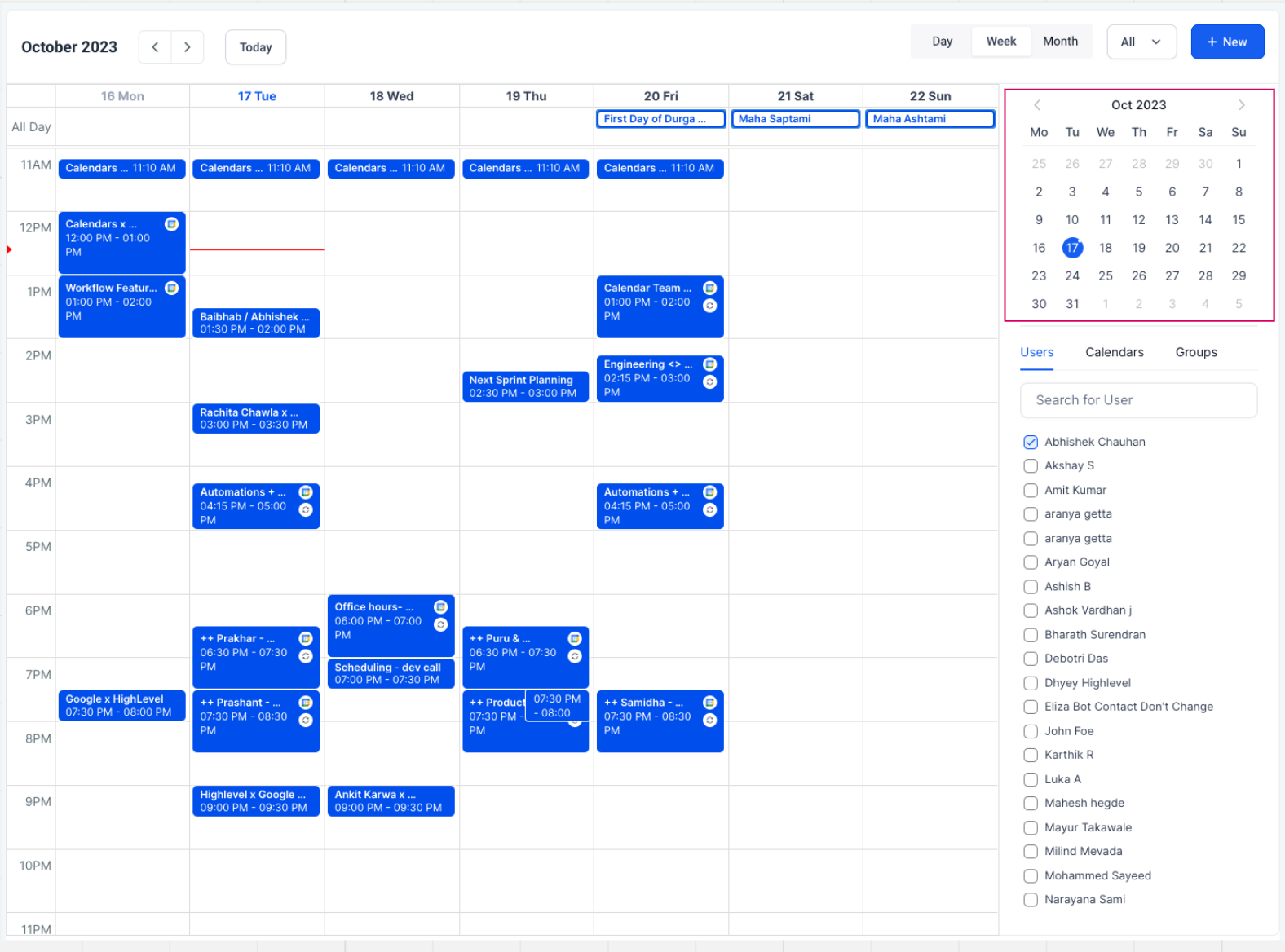
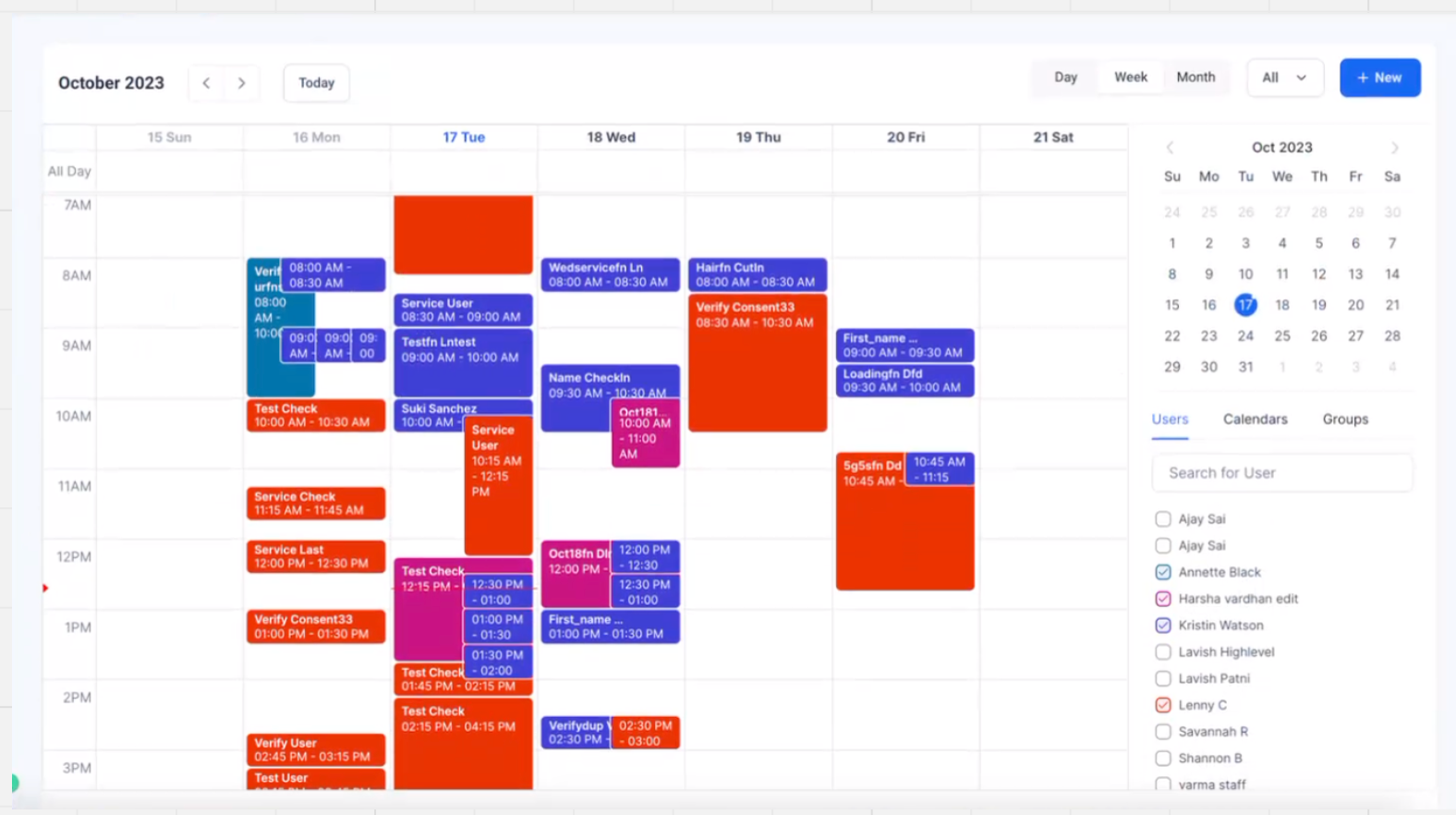
We're excited to introduce our enhanced calendar experience, designed to streamline your appointments and elevate your scheduling efficiency. Here's a breakdown of the key features in this release:
Quick Month View:
Seamlessly navigate through future dates with our intuitive month view, ensuring you stay ahead of your appointments.
Multi-User Selection:
Manage multiple users effortlessly by selecting them at once, providing a consolidated view of their appointments in a single glance.
Multi-Calendar View:
Simplify your schedule by choosing different calendars and consolidating all their appointments into one unified display. No more juggling between calendars—everything you need is in one place.
Multi-Group View:
Select multiple groups effortlessly. Appointments within these groups overlay on your calendar, offering a comprehensive overview of your day.
Color Coding for Clarity:
Users: Each user's appointments are color-coded, allowing easy distinction of schedules at a glance.
Groups and Calendars: Appointments are displayed in colors based on your customized settings, ensuring quick identification.
Intuitive Icons:
Instantly recognize events with our new icons:
Google Event: Synced from Google Calendars
Outlook Event: Synced from Outlook Calendars
Apple Event: Synced from iCloud Calendars
Recurring Event
Blocked Slot: Indicates unavailable time slots
Invalid: Highlights marked invalid events
Persistent Multi-Select:
Your selected calendars and users are remembered, allowing you to seamlessly resume your preferred view with just a click.
Additional Info on Hover:
Hover over any appointment for a detailed snapshot, including event type, title, start, and end times. Stay informed without the need to click—simplicity at your fingertips.
Load More
→