
Changelog
Follow up on the latest improvements and updates.
RSS
NewimprovedCalendar
Ask the Booker Location for Services (v2)
We’ve introduced a
new location type
that allows customers to enter their own service address during booking
.Businesses that provide services at
customer locations
— such as mobile services, repairs, consultations, or on-site appointments
— can now configure a location where the booker provides the service address at the time of booking
.This keeps the booking flow
simple
while allowing businesses to collect the exact address for each appointment
.---
✅ What’s New
- Businesses can now create an “Ask the Booker” locationin Services
- Customers will be prompted to enter their service address during booking
- The address is saved with the appointment
- The rest of the booking flow remains unchanged
---
🔐 How It Works
- Enable the option to let bookers enter their own service addresswhile creating or editing a location
- When selected, customers are asked to enter where the service will take place
- The address is stored with the appointmentand used in details and notifications
- Availability, services, and pricing continue to follow the location configuration
---
🛠 How to Use
- Go to Calendar Settings → Services (v2) → Locations
- Create a new location or edit an existing one
- Enable “Let bookers enter their own service address”
- Configure the location name and other details
- Assign the location in Staff Availabilityas needed
- During booking, customers will be asked to enter their service address
---
🎯 Why This Matters
- Supports on-site and mobile service businesses
- Enables collecting accurate addresses per appointment
- Keeps the booking experience simple and consistent
- Adds more flexibility in configuring service locations


ImprovedAutomations
Email & SMS Stats UI - Cleaner Look
What's New:
We've updated how your Email, SMS, and Internal Notification stats look to make them easier to read.
Key Updates:
Numbers First:
Your metrics now sit on top with their labels underneath for instant visibilityNo More Colors:
Removed the text color for a cleaner lookGray Text:
Numbers and labels now use a soft gray that's easier on the eyesCenter Aligned:
All stats are now centered for a more organized appearanceWhy It Matters:
Your important numbers now catch your eye first. The cleaner design and flipped layout means you see what matters most: your actual performance data before anything else.

NewimprovedCalendar
Look Busy Enhancement - Slot Randomization
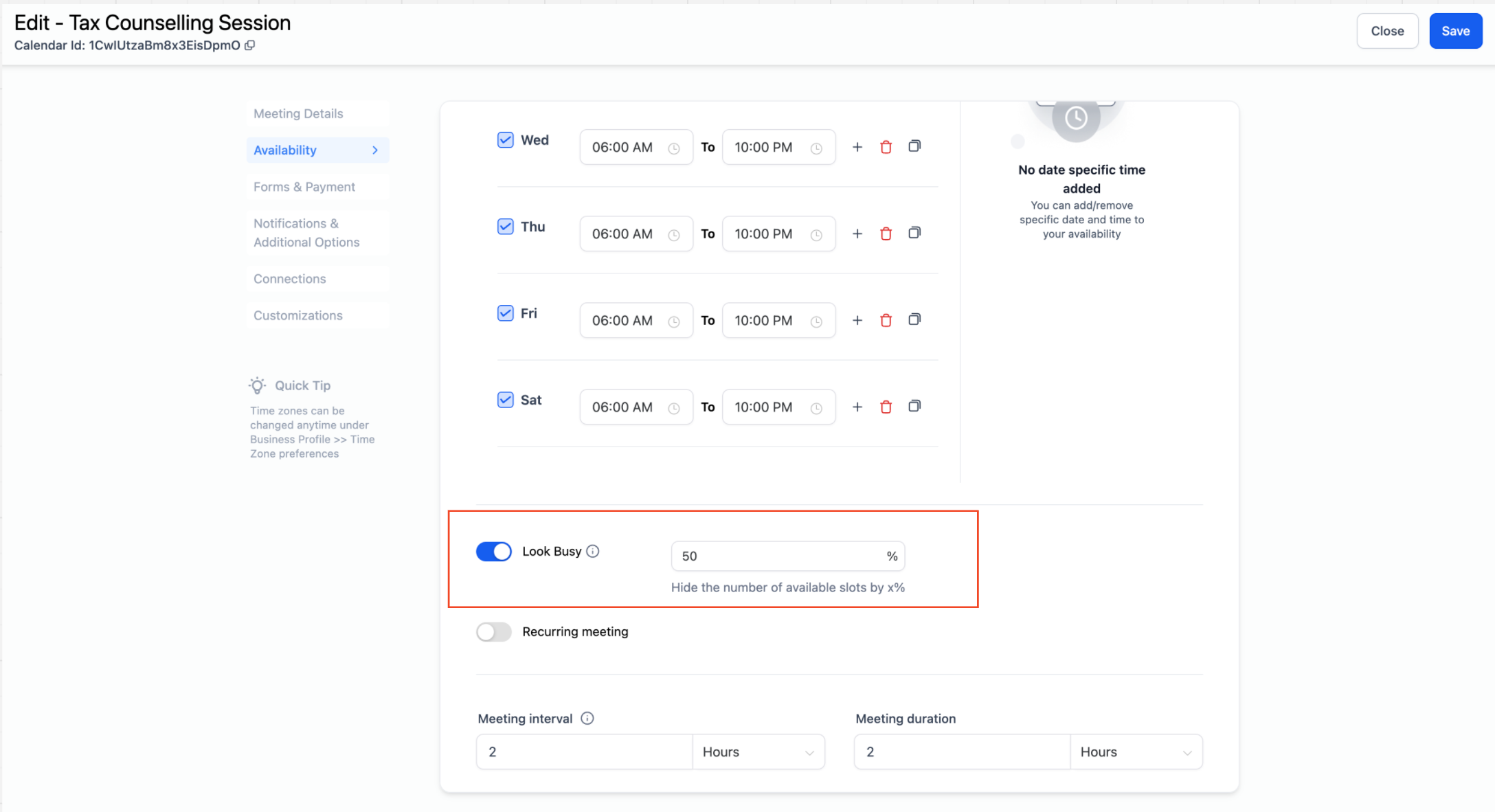
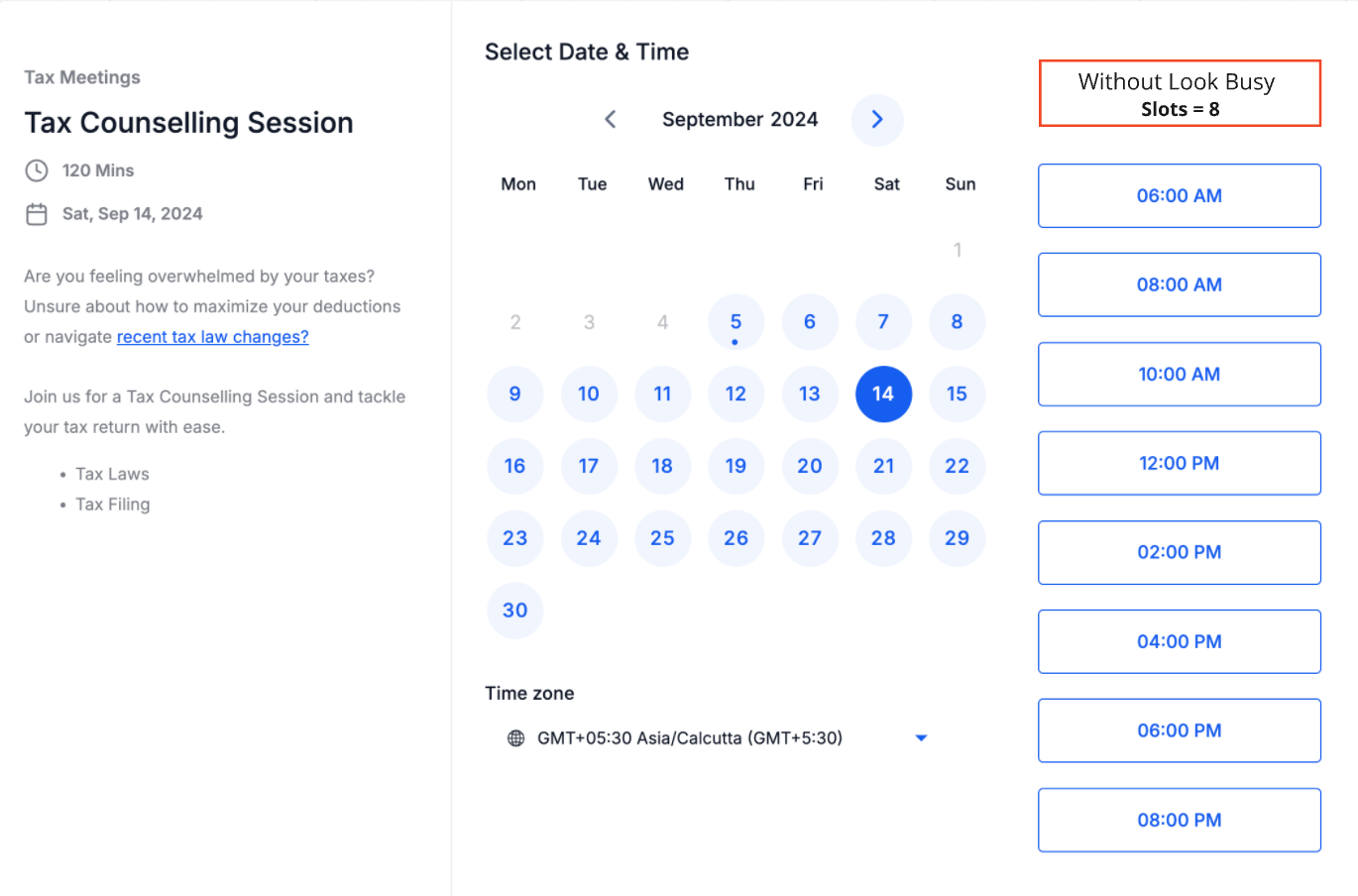
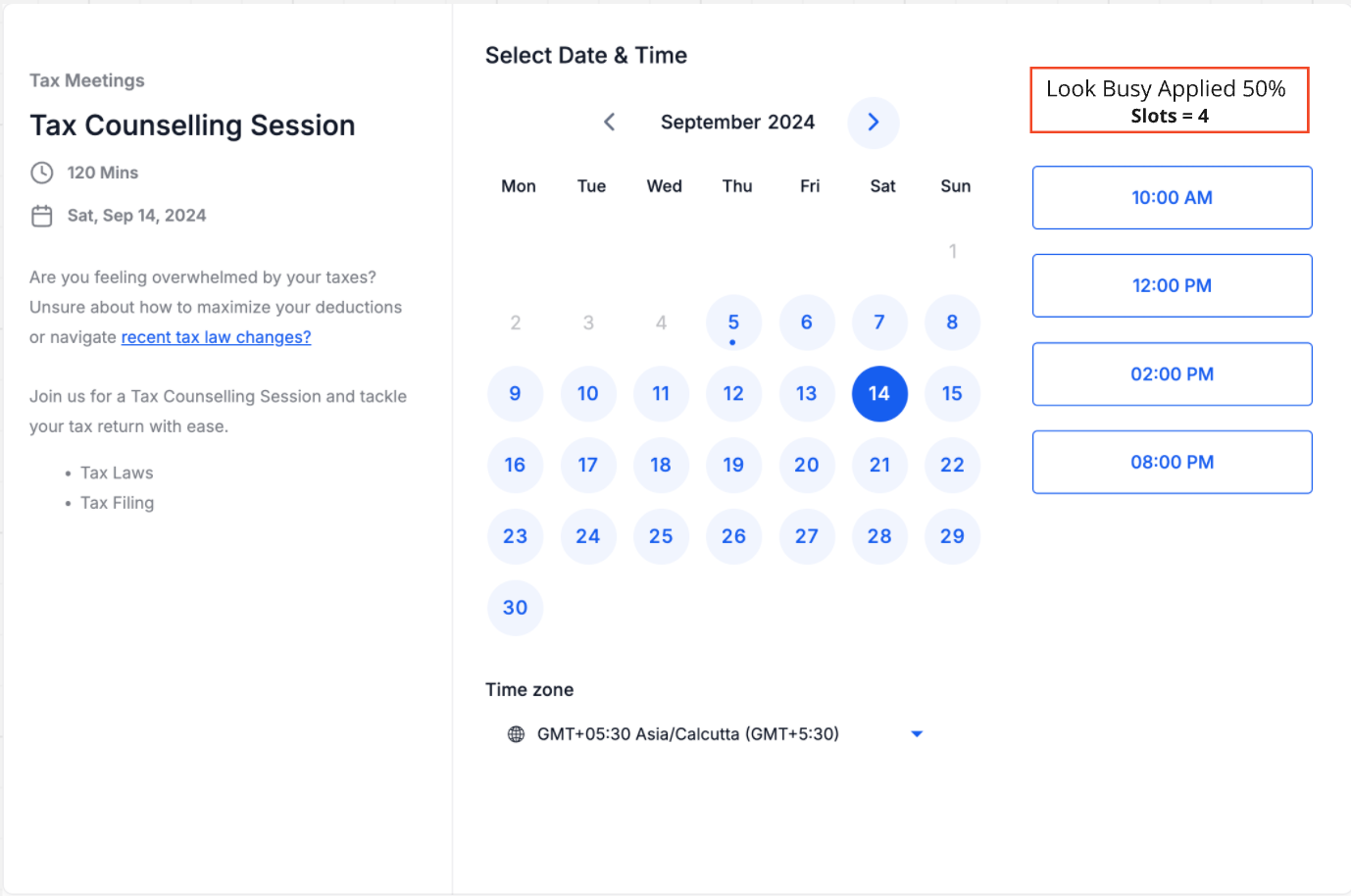
The "Look Busy" feature helps users appear more in demand by hiding a percentage of available slots on the booking widget, creating a sense of urgency for bookers.
Previously
, the slots that were hidden remained the same throughout the week. With this new
enhancement
, the hidden slots are now randomized
across different days of the week, making your availability appear more realistic and varied.How does this work?
- When a booker opens the widget, they will see a randomized set of slots.
- If the page is refreshed without booking, the same set of slots will remain visible.
- Once a booking is made, the widget will refresh, and a new random set of available slots will be displayed.
Supported Calendar Types
- Event Calendar
- Round Robin Calendar
- Collective Calendar
- Service Calendar
The "Look Busy" feature is currently not applicable for class bookings and service menus.
How to Use?
- Go to Calendar Settings and select the desired calendar.
- Navigate to the Availability tab.
- Locate the Look Busy option.
- Turn it on and enter the percentage of slots you want to hide.
- Click Save.
NewimprovedCalendar
Configure Look Busy in Calendar
What's New?
The
"Look Busy"
feature helps you appear more in demand by hiding a percentage of available slots on your booking widget, creating urgency
for bookers. Once you enable the "Look Busy" feature and set a percentage
of slots
to hide, that percentage is randomly hidden
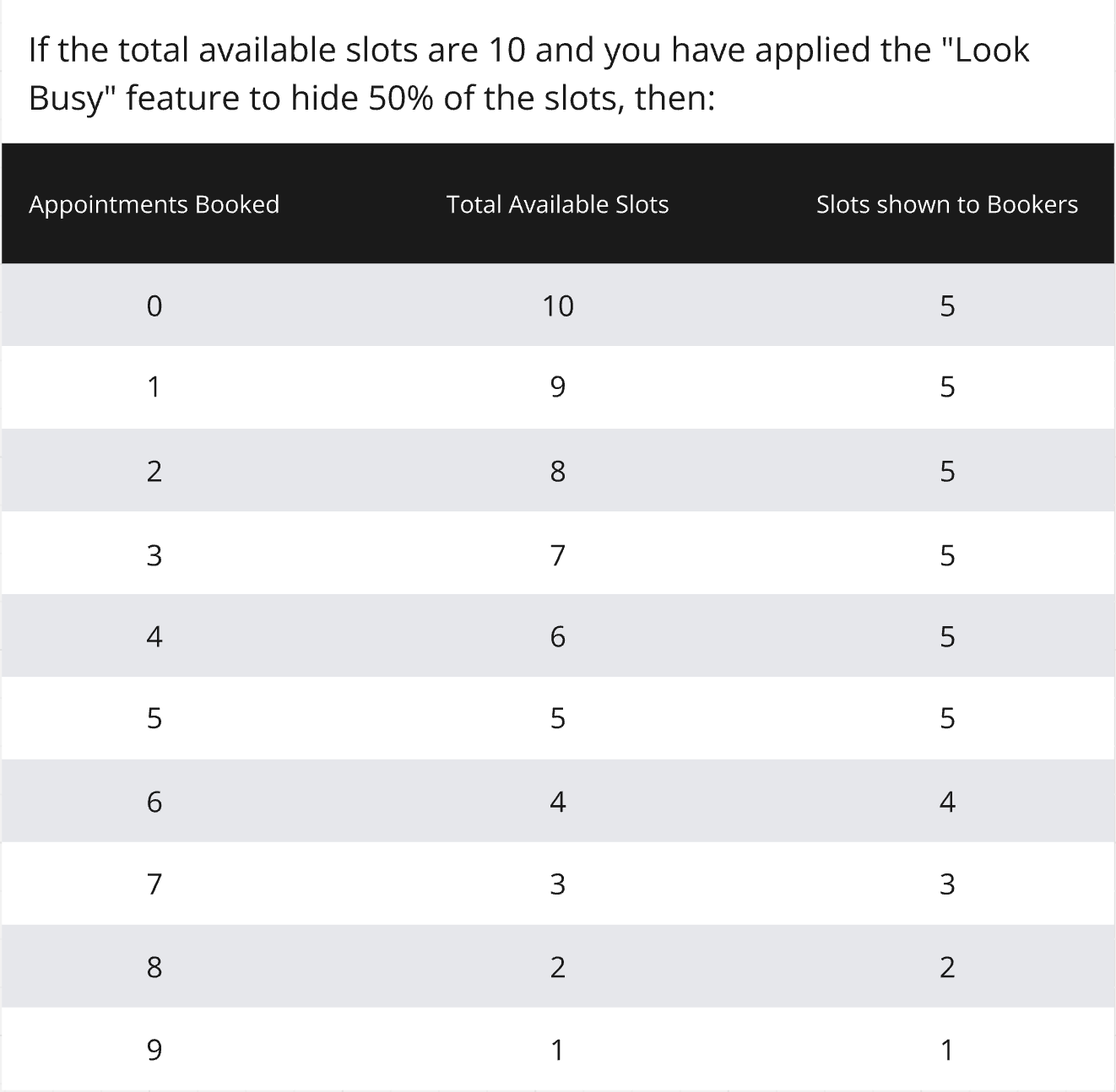
from the booking widget.Example:
If you have four time slots available in a day and choose to hide 50% of them, your bookers might see only two available slots.As bookers schedule new appointments, the number of visible slots remains constant until the actual number of slots available matches the number being shown. At that point, the widget displays the actual available slots.
Supported Calendar Types
- Event Calendar
- Round Robin Calendar
- Collective Calendar
- Service Calendar
The "Look Busy" feature is currently not applicable for class bookings and service menus.
How to Use?
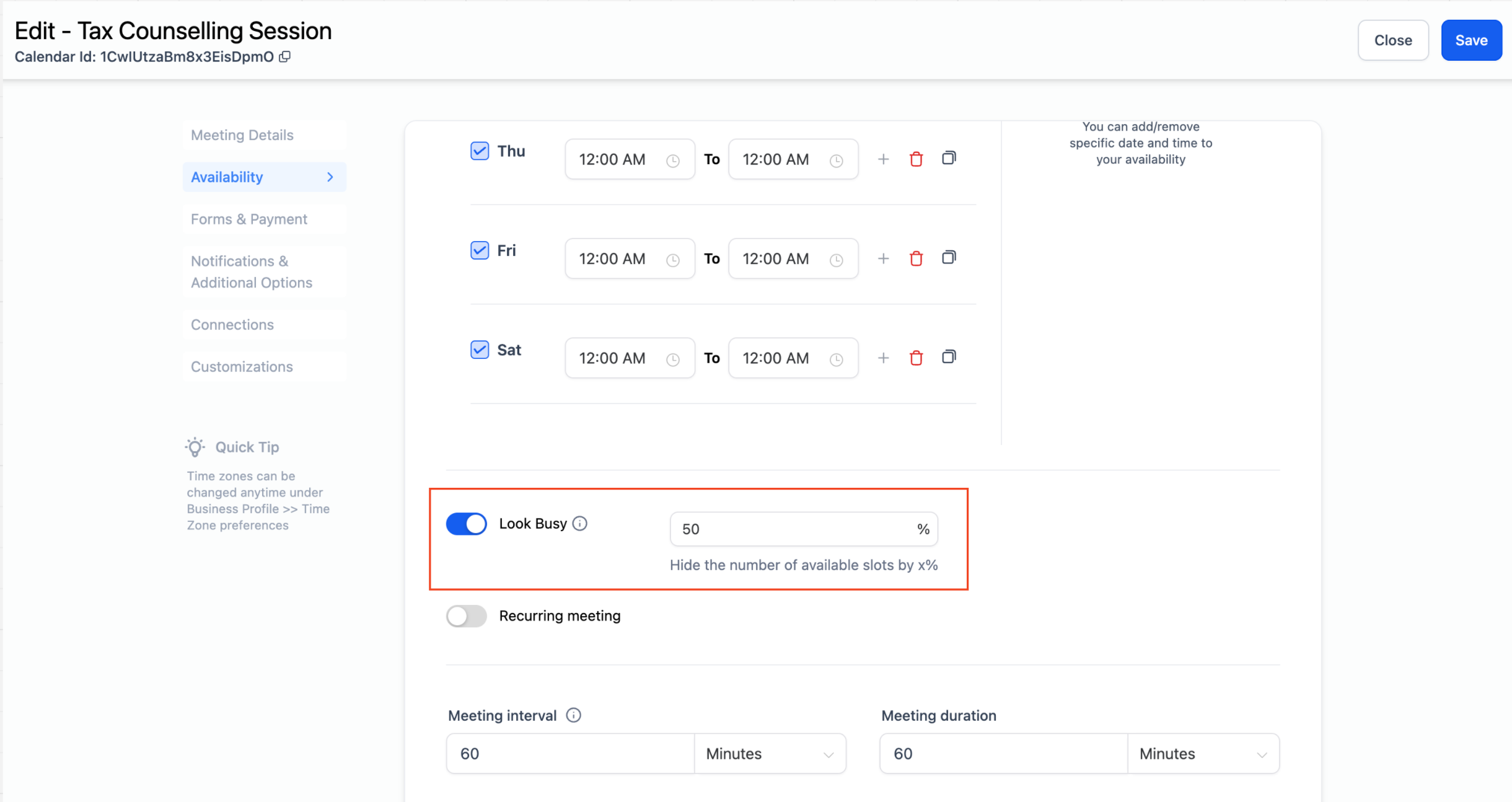
- Go to Calendar Settings and select the desired calendar.
- Navigate to the Availabilitytab.
- Locate the Look Busy option.
- Turn it on and enter the percentage of slots you want to hide.
- Click Save.
ImprovednewAutomations
Google Sheets New Action Type - Lookup Multiple Spreadsheet Row(s)
Thrilled to announce that we have launched a new action type to the Google Sheets action.
What’s New?
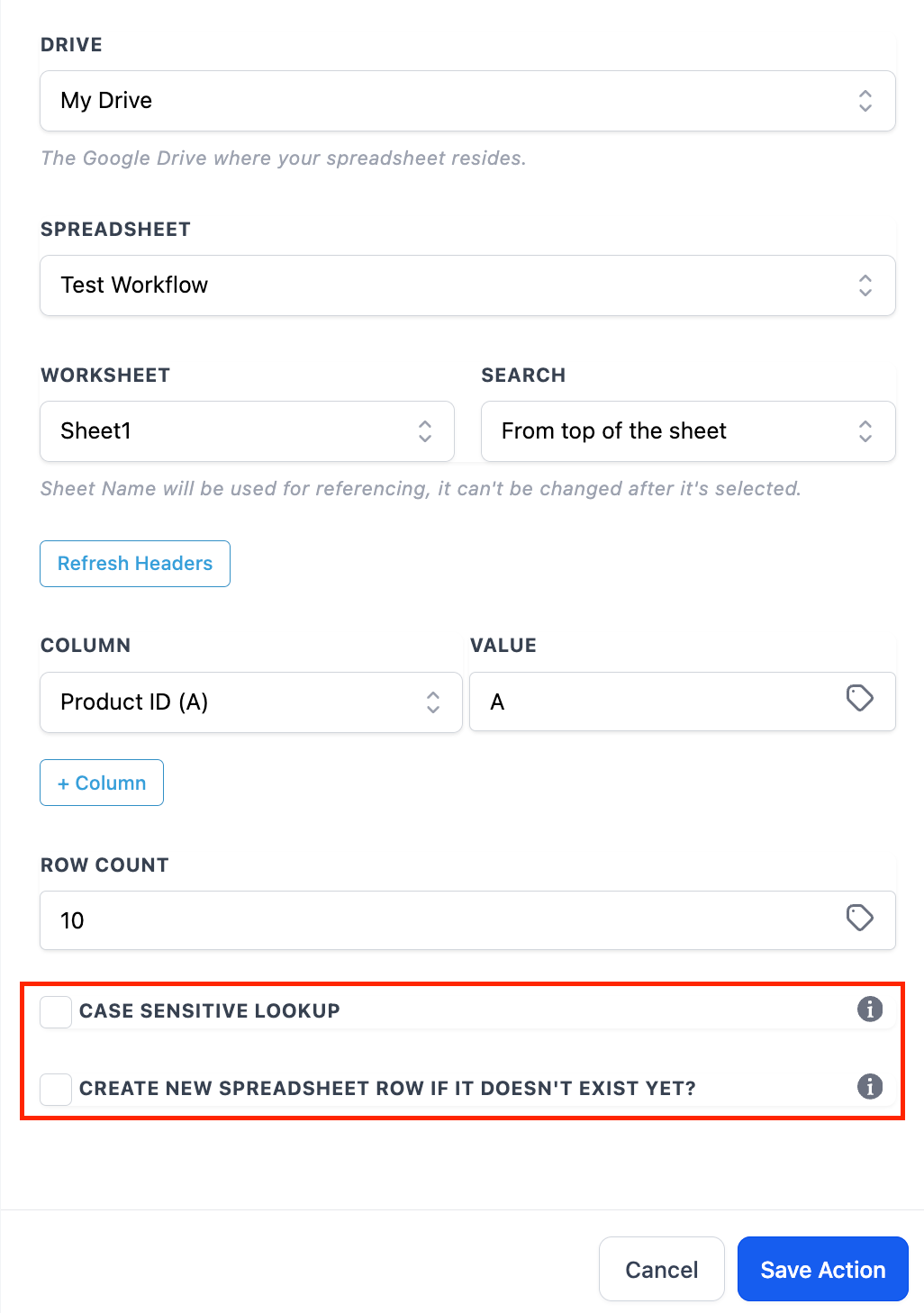
Ability to look up multiple rows in Google Sheets. The action type will go through the sheet and respond as output all the rows that are satisfying the lookup conditions.
How to use?
- Go to Workflows and select google Sheets Action.
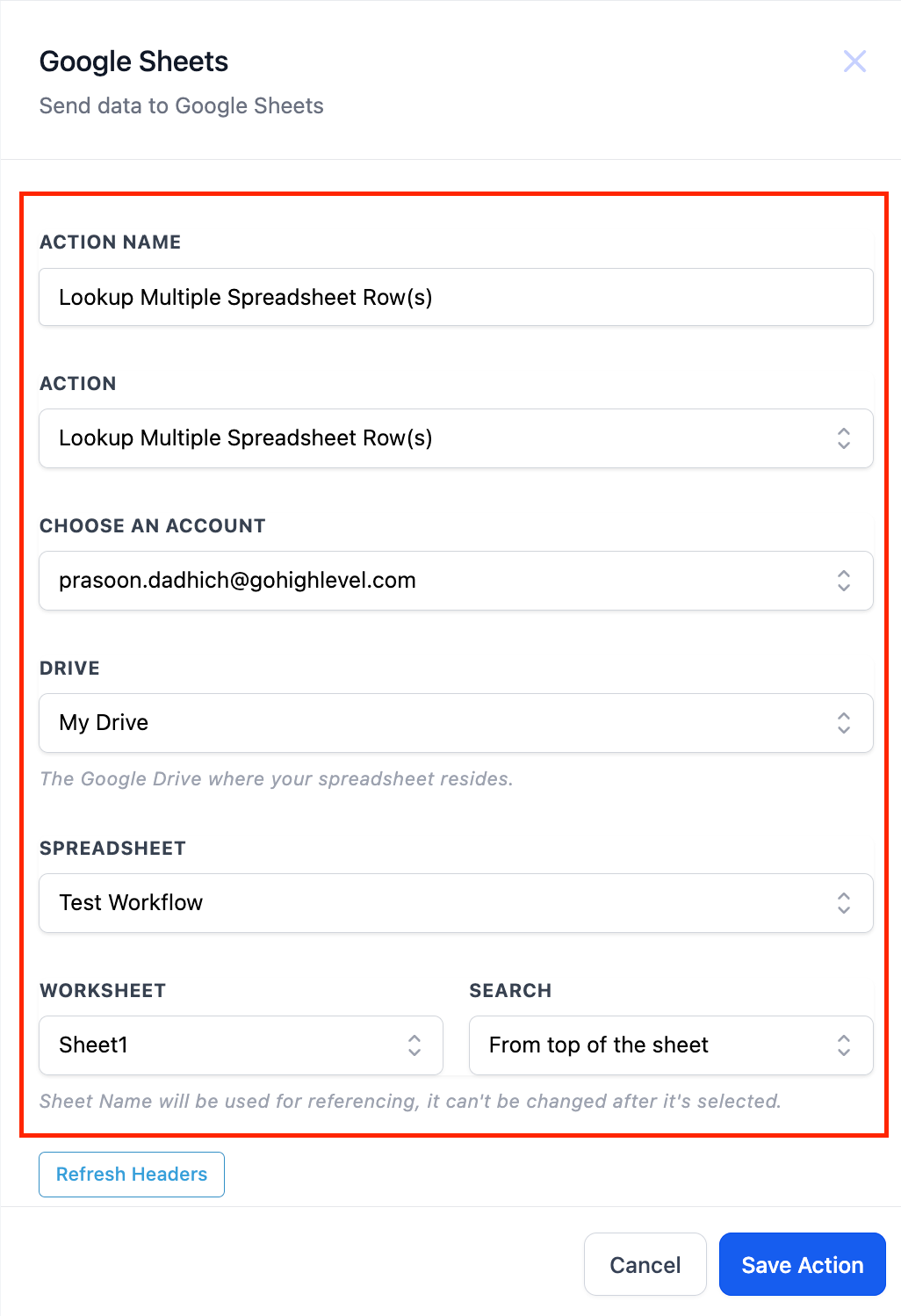
- Select the account, drive, spreadsheet and the worksheet.
- User will have an option to start the search from the bottom or top
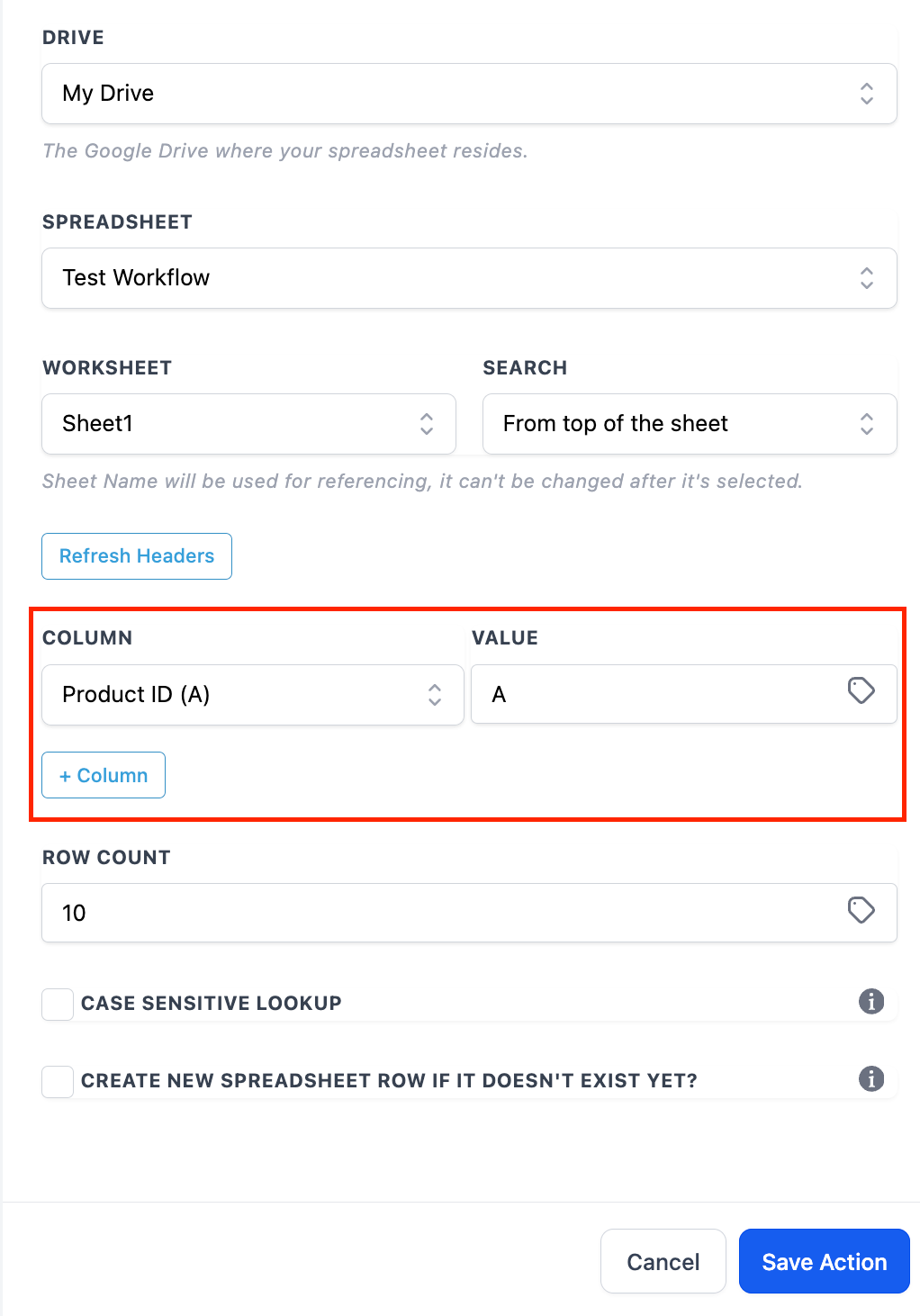
- Select the column you want to search and the value that you want to search
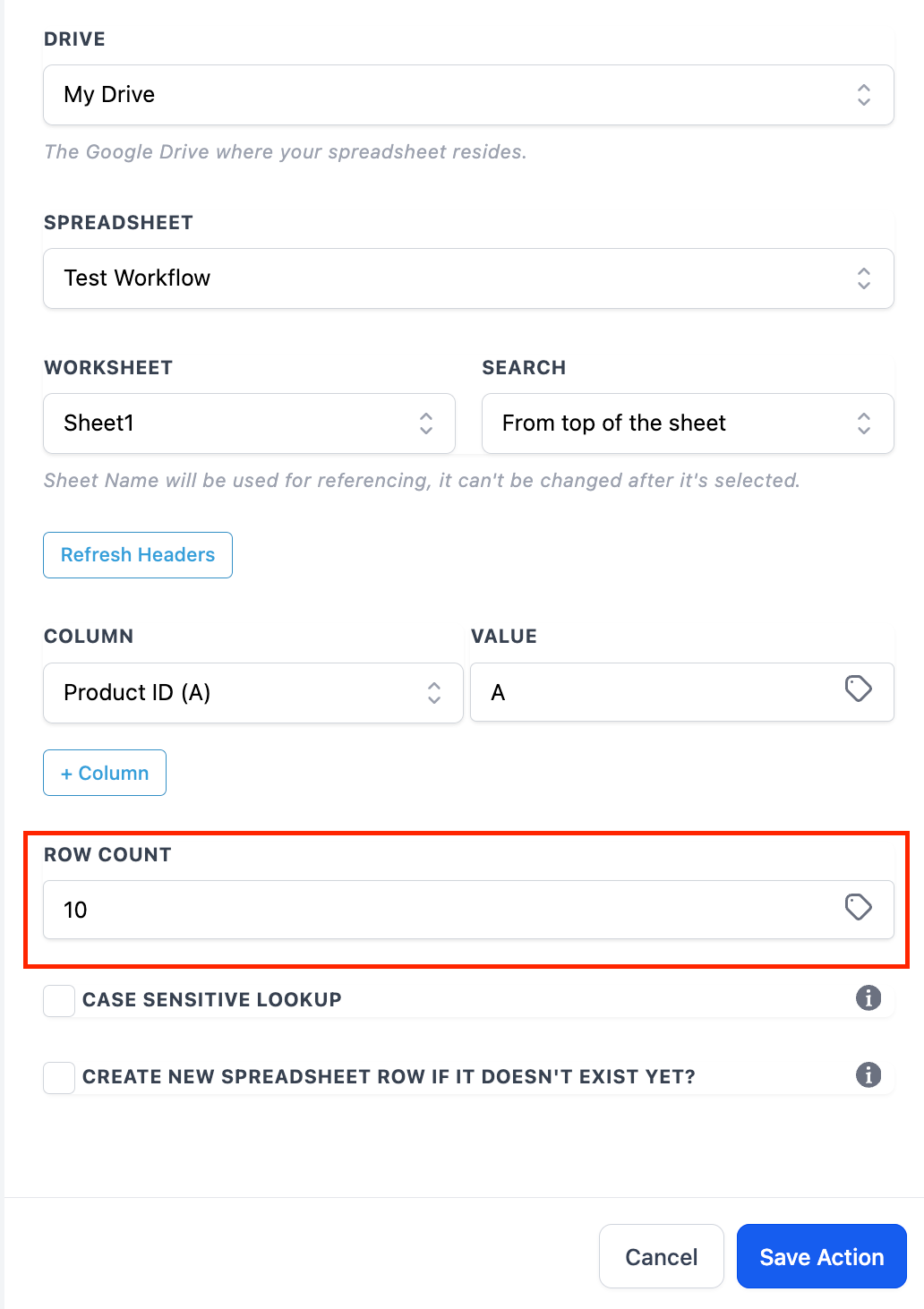
- User can also select how many rows should be extracted in the output.
- The option to have case sensitive lookup and to create a new spreadsheet if the value is not found.
Use Cases
- Extract data based on categories.
- Find leads matching a certain criteria.
- Work on data with specific values.
ImprovedCRMConversations
Giving Emails a new look
We have enhanced the way emails appear in Conversations. This will enable users to manage their communications in a more streamlined and effective way
What’s new?
- Sleek View: Users can now view all the info about their emails in a single line. This condensed view will enable users to get a brief overview at a single glance, making it easier for them to navigate through multiple communication at the same time

- Email Threading: Emails are now organized into easy-to-follow threads. All emails will appear in chronological order, to manage conversations efficiently.

- Status Tracking: Users can gain real-time insights when an email has been opened, delivered, or failed. If there are multiple recipients, we have introduced partial delivered status as well.

- Reply and Reply all in threads: Users can choose to send replies to just the ‘from recipient’ or reply to ‘all the recipients’ in the email, making it easier to manage threads without the hassle of manual recipient selection.

Impact
- Efficient Communication: The new email look simplifies email threading, ensuring all related messages are intuitively grouped together for a more efficient conversation flow.
- Enhanced Transparency: Status tracking provides valuable feedback on the delivery and engagement of users’ emails, which helps in improving communication strategy.
- Simplified Inbox Management: The sleek condensed view offers a clutter-free inbox, reducing distractions and enhancing productivit
NewSurveys
Brand New Footer in Survey Builder 🚀
🔥
Unveiling an Exciting Release:
🔥- Explore Survey Design: Immerse yourself in the world of survey design.
- More Control: We’re introducing new customization options for survey footers.
- Tailor Your Footer: Customize themes, background, font, height, progress bar, button color, position, and text.
- Empowerment: Gain the power to match your survey’s footer with your branding and style.
🥳
What’s New:
- Choose Your Theme: Customise your survey footer with different themes, including a percentage progress bar or steps progress bar.
- Tailor the Look: Modify the background, font, and height of your survey footer to align it with your brand identity.
- Progress Made Easy: Adjust the progress bar’s appearance to suit your style and preferences.
- Button Colour and Position: Customise the button colour and position within the footer for a polished look.
- Experience Slide-Sticking Footer: Now, your footer can stick to each slide, ensuring a seamless user experience.
- Real-Time Preview: Live preview your footer customisations directly within the builder for instant feedback.
🌟
Important Note
🌟:bookmark_tabs: For newly created surveys, the new footer customisation options will be enabled by default and cannot be turned off.
:bookmark_tabs: For existing surveys, the default old footer will be retained. However, you have the option to toggle on the new footer customisation options for an upgraded look and feel.
🔥
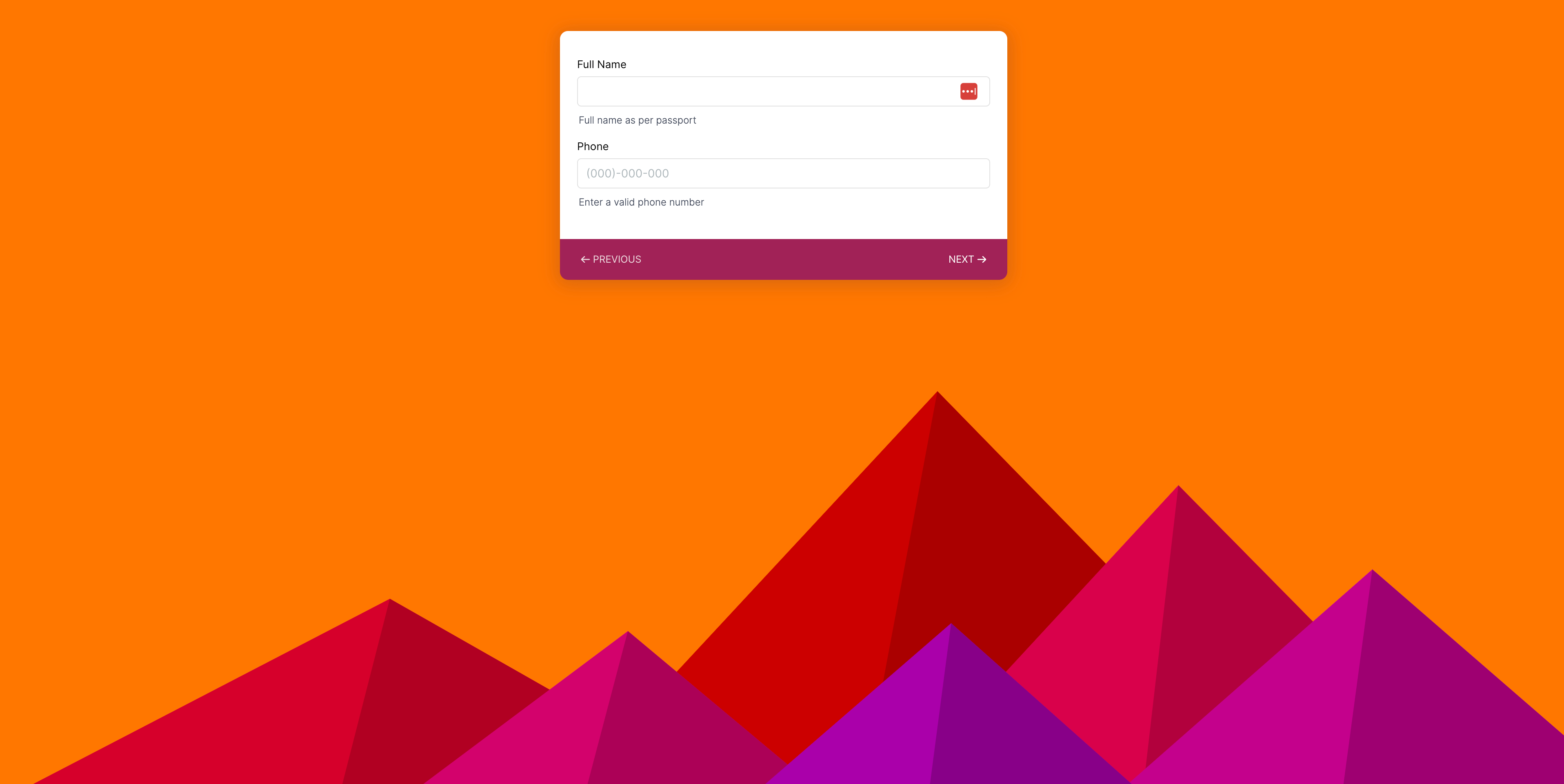
Current look of the surveys



ImprovedAutomations
Google Sheet Lookup Improvements 🔍
Case-Sensitive Search in Google Sheet Lookup
- The Google Sheet Lookup Action now has the capability to do a case-sensitive search in a spreadsheet.
- By default, "Case Sensitivity Lookup" is disabled, meaning that the lookup will not take into account any case sensitivity.
- You can enable "Case Sensitivity Lookup" to do a case-sensitive lookup.
Example:
(a) If Case Sensitivity Lookup is disabled:
"John" === "john" is true and returns the matching row
(b)If Case Sensitivity Lookup is enabled:
"John" === "john" is false and does not returns any matching row

ImprovedAutomations
[Workflow] Google Sheets - Lookup Spreadsheet Row Enhancement
Create Spreadsheet row if it doesn't exist yet:
Now you can create a new row if the lookup could not find any matching row at the time of execution.

ImprovedAutomations
[Workflow] Google Sheets - Lookup Spreadsheet Row Enhancement
Select Search Order
Now you can select in which order the Google Sheet rows should be searched to find the matching row.
- From top of the Sheet - returns the first matching row
- From bottom of the Sheet - returns the most recent matching row

Load More
→