Changelog
Follow up on the latest improvements and updates.
RSS
NewDashboard
Dashboard Summary AI ✨
We’ve completely reimagined the dashboard experience by bringing AI-powered insights to the forefront. Now, instead of just viewing raw numbers, you can instantly uncover trends, spot risks, and take action—directly from your dashboards.
What’s New
- Fresh Header Re-Design - A cleaner, modernized header makes it easier to navigate, filter, and edit your dashboards with fewer clicks.
- Dashboard AI Summary- With a single click, AI generates a smart summary of your dashboard—highlighting key metrics, growth patterns, and areas that need your attention.
- Generated AI Insights- AI doesn’t just summarize—it explains. Get context-rich insights like revenue peaks, performance drops, and next-step recommendations, helping you stay proactive instead of reactive.
- Follow-ups on Dashboard Summary- Ask follow-up questions directly from the summary to dive deeper. Whether you want to know what’s driving trends or explore specific metrics, AI gives you answers in seconds.
- Widget-Level AI Summaries-Zoom in on any widget—like your Opportunities line chart—and instantly see an AI-generated breakdown of configurations, performance, and comparisons, without manual digging.
Why It Matters
- Stop drowning in data—let AI highlight what matters most.
- Make faster, smarter business decisions with ready-to-use insights.
- Stay ahead of risks by identifying downward trends before they hurt performance.
Getting Started
Look for the ✨
Summarize Dashboard with AI
button at the top of your dashboards and experience a smarter, more actionable way to work with data.Also, if you hover over any widget in dashboard you will see option of AI too which can help you get more insight.
Dashboard Summary AI


Dashboard Widget AI Insight

Note
- User needs to enable AI Employee in order to use the AI summaries and widget summaries.
- AI Employee model window allows users to browse previous conversation to revisit the summaries and widget detailed by AI
- Followups only work on custom widgets and not on standard widgets
What’s Next for Dashboard AI?
In the future, Dashboard AI will go beyond summaries and insights. Users will be able to create widgets directly from screenshots or references, making setup faster than ever. These widgets will come with side-by-side real-time analysis and goal-driven suggestions, tailored to how a specific niche or industry is performing.
NewReportingDashboard
Sub-Account Dashboards & Reporting: Instant Dashboard Insights
Add powerful analytics right from where the action happens!
👀 What’s New?
You can now add relevant dashboard widgets directly from key pages like
Opportunities
, Appointment Reports
, and Call Reports
— no need to leave the page!👷 How It Works:
While viewing any of the supported pages:
- Click the Dashboard Insightsicon.
- Choose the dashboard where you want to add widgets.
- Confirm the widgets to add.
- Click Confirm & Add— and you’re done!
- Stay on the page or head over to the dashboard to view the insights.
⭐ Why it Matters:
No more jumping between pages to build dashboards. This feature brings dashboard customization into the flow of your daily work, helping you track performance with context — right where you need it.
🔜 Coming Soon:
We’re working on expanding this to more areas across the platform!


NewimprovedDashboard
Sub Account Dashboard and Reporting: Default Dashboard Override Through Snapshots
You can now push and override default dashboards directly through snapshots!
👀 What’s Improved?
Previously, default dashboards didn’t update when pushed through snapshots, requiring manual setup on target locations. This has been fixed! Now, you can push dashboards, including default ones, ensuring accurate reporting for new sub-accounts without extra steps.
👷 How It Works:
- While creating a snapshot, ensure you select the default dashboard from the list.
- When the snapshot is applied to a new location, the default dashboard is automatically included and set up.
⭐ Why it Matters:
This update improves user experience by automating default dashboard setups and saving time for streamlined reporting.
We’re thrilled to bring you a brand-new customization feature—Themes for Dashboards and Widgets! Your dashboard can now reflect your unique style and brand identity.
👀 What’s New?
- Personalize Your Look:Customize the appearance of your entire dashboard or individual widgets with stunning themes.
- Predefined & Custom Themes:Select from a variety of predefined themes or craft your own custom theme with specific colors.
- Full Control:With custom themes, you can modify: Widget Title Color, Widget Background Color, Metric Color, Chart Color, Hyperlink Colors and more!
👷 How It Works:
- Go to your dashboard and click the edit icon.
- Switch to the Theme tab.
- Choose a predefined theme or create a custom one that suits your style.
- Save your changes and watch your dashboard transform!
⭐ Why it Matters:
Your dashboard is a reflection of your brand. With this feature, you can customize its look and feel, making it more visually appealing and tailored to your needs. Whether you prefer a sleek, minimalistic design or bold, colorful visuals, the choice is yours.


We're thrilled to introduce an exciting enhancement to our dashboards and widgets with the addition of Custom Fields!
👀 What’s New?
- Enhanced Customization:You can now utilize any of your custom fields to filter and define widgets on your dashboard.
- Visualize Trends:Use your custom date properties to create insightful trends and charts.
- Custom Field Types:Here are the types of custom fields you can use in the Group By/View By properties: Single Line, Date (Only in View By), Phone Number, Monetary, Numerical, Radio, Checkbox, and Multi and Single Options.
👷 How It Works:
- Go to your dashboard and click the edit icon.
- Choose any widget.
- Switch to the Conditions tab.
- Select your custom fields and specify the operator and condition.
- For Donut, Line, or Bar charts, choose your custom field from the Group By/View By dropdown.
- Similarly you can choose a custom date property as well.
- Save your changes and watch your dashboard come to life!
⭐ Why it Matters:
This feature empowers you to tailor your dashboards like never before! By leveraging custom fields, you can create more relevant and dynamic visualizations, helping you gain deeper insights into your data and make more informed decisions.

👀 What’s New?
We are thrilled to introduce a powerful new widget designed to enhance your sales efficiency, now available under general widgets on your dashboard. Here’s what you can look forward to:
- Average Sales Duration:Monitor the average time taken for all opportunities to close, helping you identify areas for improvement.
- Total Sales Value: Keep track of the total value of your sales to measure overall performance.
- Sales Velocity:Measure the speed of your sales processes to ensure efficiency and quick conversions.
These metrics are filterable by users, providing more granular insights into individual performance and allowing for better tracking and optimization of your sales processes.
To learn about the custom widgets, click here!


Dashboards are now supported in Snapshots!! Now, agencies can effortlessly save time during onboarding and ensure consistent dashboard configurations across multiple locations.
👷 How It Works:
- Navigate to Account Snapshots in Agency View.
- Create a new snapshot and choose the source account.
- Save the snapshot and select the target location.
- Load the snapshot into the desired location
- Select all the Dashboards you want to load into the desired location
⭐ Why it Matters:
This feature streamlines the onboarding process for agencies, allowing them to easily replicate dashboard setups across different accounts. With pre-configured dashboards, agencies can ensure a consistent user experience and quickly provide valuable insights to their clients.
📌 Imp Note:
- Private Dashboards Exclusion:Private dashboards are not included in the snapshot asset list. Ensure that the required dashboards are not private to include them in the snapshots.
- Include Linked Assets:Dashboards are loaded with all widgets, conditions, filters, and custom widgets. However, make sure to include other assets linked to dashboard widgets (e.g., custom values and pipelines). Failure to do so may result in an error message on specific dashboards, indicating missing properties. Edit each highlighted widget to correct the properties and save to remove the error.
- Default Dashboard:Default dashboard will not be changed automatically when a snapshot is loaded into a location
To check out our detailed guide on this, click here!


NewDashboard
Sub Account Dashboard: Default Dashboards
Introducing Default Dashboards! Set the stage for success with Default Dashboards, empowering you to curate and share vital insights seamlessly across your team. Now, you can ensure that everyone starts their day with the most critical information at their fingertips, without any hassle.
👀 What’s New?
- User-Controlled Default Dashboards:Take charge of your team's dashboard experience by setting up default dashboards tailored to your specific needs.
- Instant Visibility:The default dashboard becomes the first thing your team members see when they navigate to the dashboard section, ensuring instant access to essential insights and metrics.
👷 How It Works:
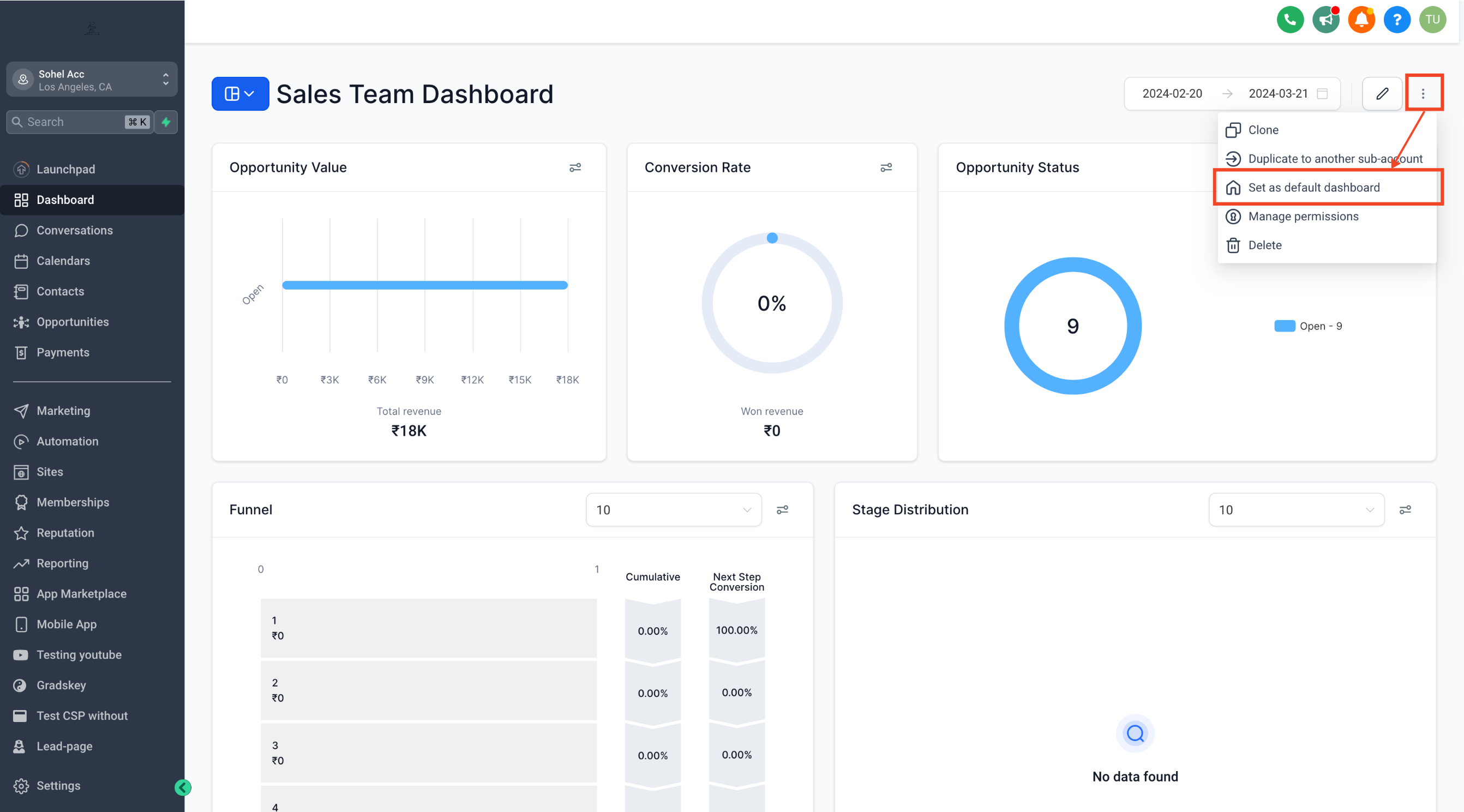
- Navigate to the desired dashboard you wish to set as the default.
- Click on the three-dot menu located in the top right corner.
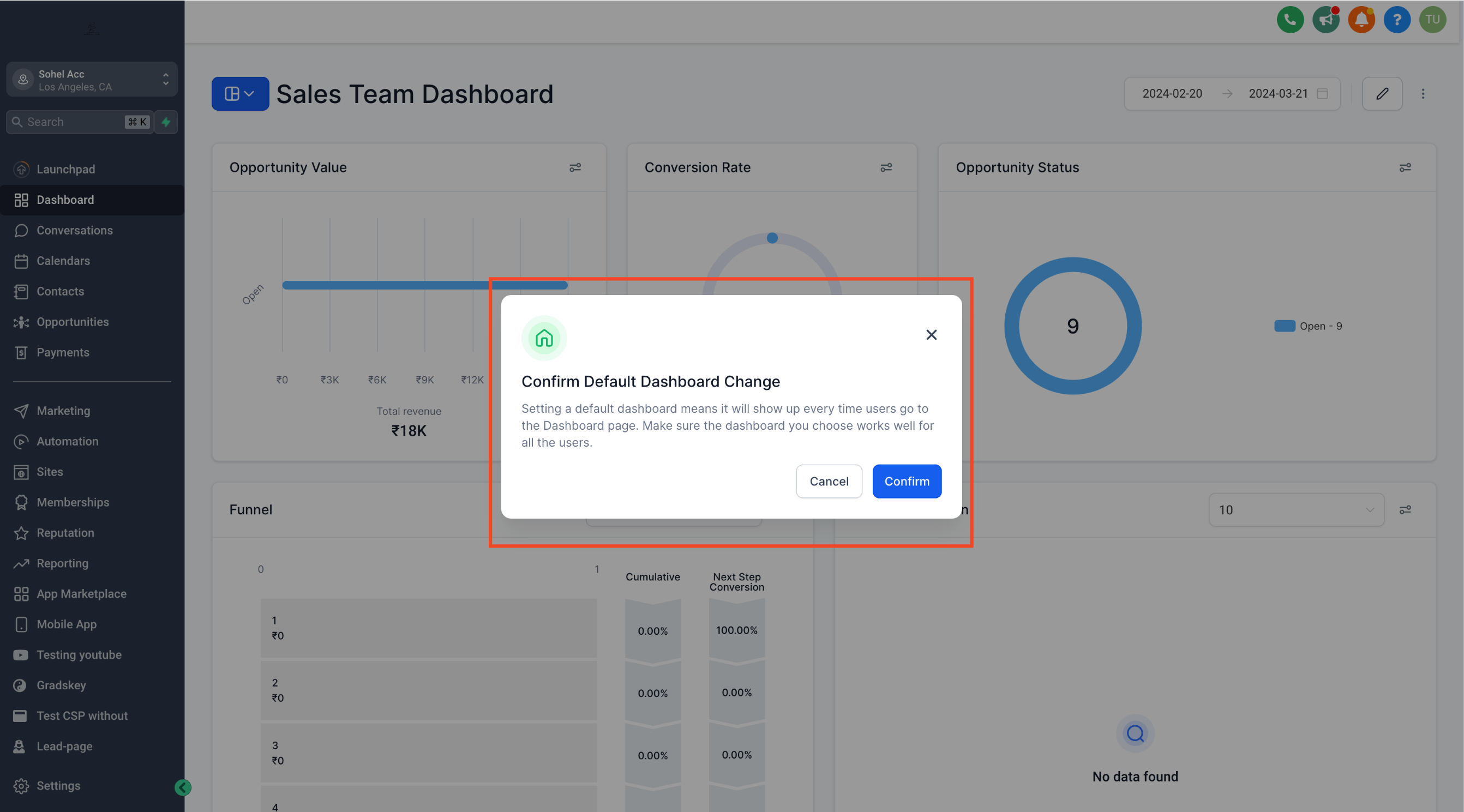
- Select "Set as Default"to instantly establish this dashboard as the go-to for your entire team.
⭐ Note:
- Permissions Required:Account Admin or Agency Roles with FULL access to a Dashboard are eligible to set it as a default dashboards.
- Viewing Permissions:All roles must have at least VIEW permission for a dashboard to be set as default.
- Non-Deletable Default Dashboards:Once set as default, a dashboard cannot be deleted until another default dashboard is assigned.
- Distinguishing Default and Pinned Dashboards:Default dashboards serve as the primary landing page for all users, while pinned dashboards are personal favorites that individual users can access quickly.
For the detailed guide on Default Dashboards, click here! and to learn more about Dashboard Permissions, click here!
⚡ Important:
If you are experiencing issues with your default dashboard being changed after this release, you can revert it back by following the instructions in the support documentation. Please note that existing dashboards and widgets are not affected. We identified a bug post-release, but the patch has been deployed to address it. If you are still facing any issue, please reach out to our support team.
Enhanced Custom Permissions for Dashboards! Tailor your dashboard experience by setting permissions according to your preferences. Whether you prefer privacy or collaborative sharing, our platform allows you to customize permissions seamlessly.
👀 What’s New?
Experience expanded options for setting custom permissions on your dashboards. Now, not only can you set permissions for different roles, including
Account Admins
and Account Users
, but you also have more control over who can view, edit, and manage them. Choose from four distinct levels of permissions:- FULL: Grants the ability to create, edit, share, and delete dashboards.
- EDIT: Allows editing of a dashboard and its widgets, without the ability to delete it.
- VIEW: Provides read-only access to a dashboard.
- NO ACCESS: Restricts access to the dashboard entirely.
👷 How It Works:
- Setting Up Permissions:
- Customize permissions while creating a new dashboard.
- Toggle the Private Dashboard if required.
- Managing Permissions for existing Dashboards:
- Click on the three dots at the top right corner of the dashboard.
- Select "Manage Permissions" to update permissions.
- Updating Permissions:
- Toggle the Private Dashboard if required.
- Choose the desired permission level for each user or role.
- Saving Changes:
- Click "Save" to apply the updated permissions.
🌟 Why it Matters:
- Customize permissions for better privacy and collaboration.
- Ensure that only the right people have access to sensitive data.
- Streamline workflow by granting appropriate access levels to team members.
⚡ Note:
- Permissions are automatically adjusted based on the role hierarchy.
- Lower-level roles cannot possess higher access levels compared to higher-level roles.
To learn more about Dashboard Permissions, click here!


NewClient Portal
Preview Dashboard
We're thrilled to introduce a significant upgrade to the client portal experience – the Preview Dashboard. This feature will be visible to clients upon logging into the client portal and selecting "Home."
Key Features:
- Dashboard Card: A dynamic card showcasing information about child apps
- Quick Actions: Streamlined actions for quick navigation.
- Profile: A dedicated section displaying user profiles details
How to use Magic Links:
This feature will be visible to clients upon logging into the client portal and selecting "Home."
Bug Fixes & Tech Debts:
Client Portal Logo: The default logo was disrupting the Portal Image. The logo will be visible only when uploaded by the user.
Load More
→